Track/Assign Housekeeping Credits by Unit Size
Stay allows users to assign housekeeping service requests to staff and track their efforts by unit size. Unit sizes are measured by square feet or square meter to comply with regional nuances and legal requirements of the property.
Feature Setting
The following feature setting must be enabled to use this feature.
-
Name: Housekeeping Capacity by Size
-
Comments: License is not required
Permissions
The following permission must be assigned to use this feature.
-
Stay_OverrideHKCapacity
Users with this permission can override and modify the time/points/size in the Housekeeping Services section, and at the room type and room number levels. This permission is assigned to the following roles by default:
-
System Administrator
-
Stay Hotel Manager
-
Department Manager
-
Stay Hotel Supervisor
-
Stay Housekeeping Supervisor
-
HK Supervisor
-
Stay Night Audit
The following existing permissions must be assigned to use this feature:
-
WriteHousekeeping
-
Stay_WriteHKServicesSetup
-
ReadHousekeeping
-
Stay_ReadHKServicesSetup
Property Setting
The Unit of Measurements section in the Language & Locale tab of the Property Setup screen (All Settings ➜ General ➜ Property, Buildings & Outlets) allows users to select from the following units of measurement to be used for measuring the dimensions of the rooms at the property:
-
Square Feet (SQFT)
-
Square Meter (SQM)
By default, the Square Feet option is selected.
Configure Room Size of Room Types
The Room Size field in the Add pop-up screen that appears when users create a new room type (All Settings ➜ General ➜ Rooms & Room Types ➜ Room Types ➜ Add) is an optional field that allows users to configure the size of the room type. The unit of measurement is based on the option selected.
The Housekeeping Services section available below the Features section in the Add pop-up screen displays the housekeeping services configured in the Services section of the Housekeeping Setup screen (Settings ➜ Housekeeping ➜ Services) along with the time and points. The Size column displays the size configured for the room type. Users can modify the values displayed if required.
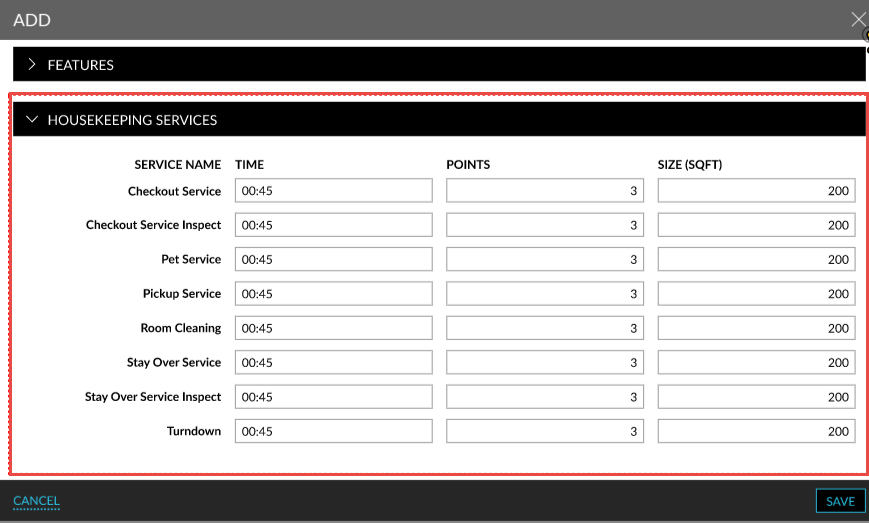
Users can modify the values of the time/points/size displayed if required. For users with the required permissions, a Confirmation pop-up screen appears that displays the following message: The modified time, point, size and room size will be updated for all rooms existing under this room type. Any overridden values will not be updated. Do you want to proceed? When users click Confirm, the changes will be updated successfully.
For users without the required permissions, a Username and Password field will be displayed additionally in the Confirm pop-up screen. When users click Confirm, the entered credential of the user is validated, and the changes will be updated successfully upon successful validation of the credentials.
Configure Time/Points/Size for Rooms
Users can configure the time/points/size for each room in the Property Configuration tab of the Rooms Setup screen. A new field, Room Size, and a new section, Housekeeping Services has been added to the Add pop-up screen. The room size configured at the room type level will be displayed for the room. If the room size is not configured for the room type, the Room Size field displays the value 0.
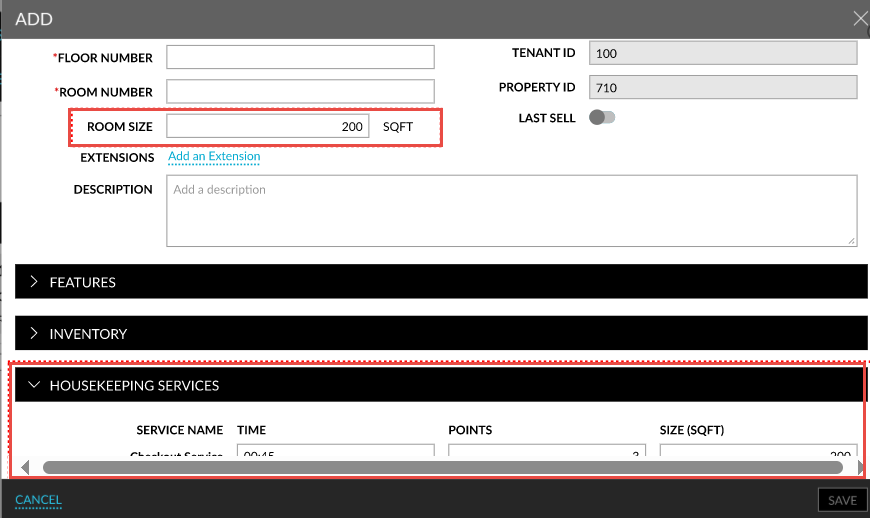
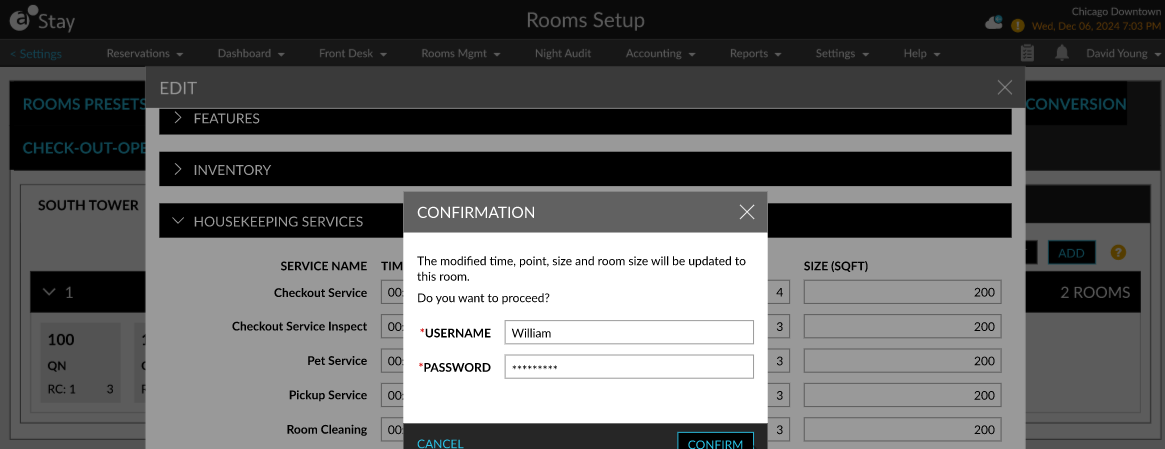
Users can modify the values displayed when required. For users with the required permissions, a Confirmation pop-up screen appears that displays the following message: The modified time, point, size and room size will be updated for this room. Do you want to proceed? When users click Confirm, the changes will be updated successfully.
For users without the required permissions, a Username and Password field will be displayed additionally in the Confirm pop-up screen. When users click Confirm, the entered credential of the user is validated, and the changes will be updated successfully upon successful validation of the credentials.
Room Type Conversion
When users perform room type conversion of room types (All Settings ➜ General ➜ Rooms & Room Types ➜ Room Type Conversion), the housekeeping service time, points, and size of the room type being converted will be updated with the values configured for the destination room type. The following message is displayed as a banner in the View Pre-Conversion Information pop-up screen: Existing Time, Point & Size will be restored irrespective of room type conversion.
Stay Property Setup Tool
Users can also import the time/size/point values for room types and rooms using the Stay Property Setup tool (All Settings ➜ General ➜ Property Import/Export ➜ Import). The existing values configured for the room types and rooms can also be exported.
Add/Modify Housekeeping Capacity
When users add or modify the capacity (time/points/size) for a housekeeping service, the following will occur:
-
When capacity is added/modified in the Housekeeping Services section at the room type level, the credits will cascade to the service at the room number level.
-
When capacity is added/modified at the room type level, the credits will be cascaded to the service in the Services section of the Housekeeping Setup screen and in the room number level.
-
When capacity is added/modified at the room number level, credits will be cascaded to the service in the Services section of the Housekeeping Setup screen and the room type level.
When users update housekeeping credits for a service type, the credits can be applied to all room numbers with which the service is associated by selecting the Include Specific Override checkbox in the Confirmation pop-up screen. When selected, the credits updated at the room type level, or the Services section of the Housekeeping Setup screen will be cascaded to all room numbers associated with the service.
Logs in Audit Log Screen
A record is created in the Audit Log screen (Reports ➜ Audi Log) when users add/modify the room size configured for a room type/room.
Select Unit in Housekeeping Setup Screen
When the Housekeeping Capacity by Size feature setting is enabled, a new option, Size, is displayed in the Default Unit drop-down list in the Capacity section of the Housekeeping Setup screen (Settings ➜ Housekeeping). When this option is selected, users can configure the maximum size for the housekeeping staff in the Default Max Size field.
When users configure housekeeping staff in the Staff section, a new field, Capacity in Size, added to the Add pop-up screen allows users to configure the maximum size for the staff.
When users configure services in the Services section, the size configured for the services at the room type and room number level will be displayed in the new column, Size.
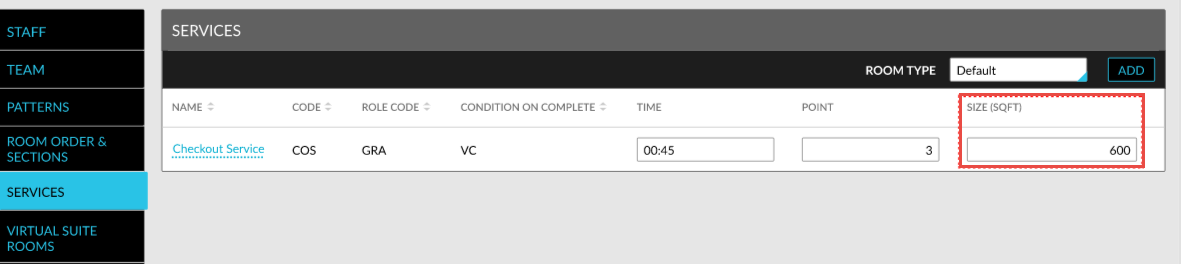
Users can modify the size if required. For users with the required permissions, a Confirmation pop-up screen appears that displays the following message: The changes will be updated in the room type and their related rooms. Any overridden values will not be updated.
Do you want to proceed? When users click Confirm, the changes will be updated successfully.
For users without the required permissions, a Username and Password field will be displayed additionally in the Confirm pop-up screen. When users click Confirm, the entered credential of the user is validated, and the changes will be updated successfully upon successful validation of the credentials.
The modified value is also updated for the services at the room type level.
When users create housekeeping boards, the services are assigned based on the metrics selected in the Capacity field.
Housekeeping Screen
When the housekeeping capacity is selected as size, a new column, Size, is displayed in the following tabs in the Assigned Services section of the Housekeeping screen.
-
Staff
-
Team
-
Room
-
Housekeeping Condition
-
Group & Company
-
Loyalty Program
-
VIP
-
Priority Check-In
The Size column is also displayed in the following tabs in the Housekeeping screen.
-
Staff: Users can view the size configured for the staff on-duty.
-
Assign: Users can view the size assigned to staff. If room size is not configured at the room type/number level, the size is displayed as 0.
-
Print: Users can view the size associated with a room number in the Assigned Services section of the Print tab.
Housekeeping Reports
Housekeeping Productivity Report (Dynamic)
When the Housekeeping Capacity by Size feature setting is enabled, the Housekeeping Productivity report tracks the points, time, and size of the assigned services. The following new columns have been added to the report:
|
Field |
Description |
|---|---|
|
Daily |
|
|
Total Size Assigned |
The total size assigned for the service. |
|
Total Size Planned |
The total size assigned for the staff for the day. |
|
Total Size Completed |
The total size planned for all services for the selected date. |
|
Month to Date |
|
|
Total Size Planned |
The total size assigned for the staff for the day from the start of the month up to the selected date. |
|
Total Size Completed |
The total size planned for all services from the start of the month up to the selected date. |
|
Year to Date |
|
|
Total Size Planned |
The total size assigned for the staff for the day from the start of the year up to the selected date. |
|
Total Size Completed |
The total size planned for all services from the start of the year up to the selected date. |
Housekeeping Forecast by Services Report (Dynamic)
A new column, Total Size Predicted (SQFT/SQM), has been added to the Housekeeping Forecast by Services report that tracks the total size for all services and the total size of each service request.